 Bank Zenit
 Renaissance Bank
 LOCO-Bank
 T-Bank
 Bank Sinara
 Credit Europe Bank



Ozon bank card: pros and cons

- What is an Ozon Card
- How to get an Ozon Card
- Maintenance fees
- Limits
- How to increase the limit
- Loyalty program
- How to top up an Ozon Card
- Transfers and withdrawing money from an Ozon Card
- How to close card services
- What is the difference between Ozon Card and Ozon Card (old version)
- Pros and cons of the Ozon Card
What is an Ozon Card
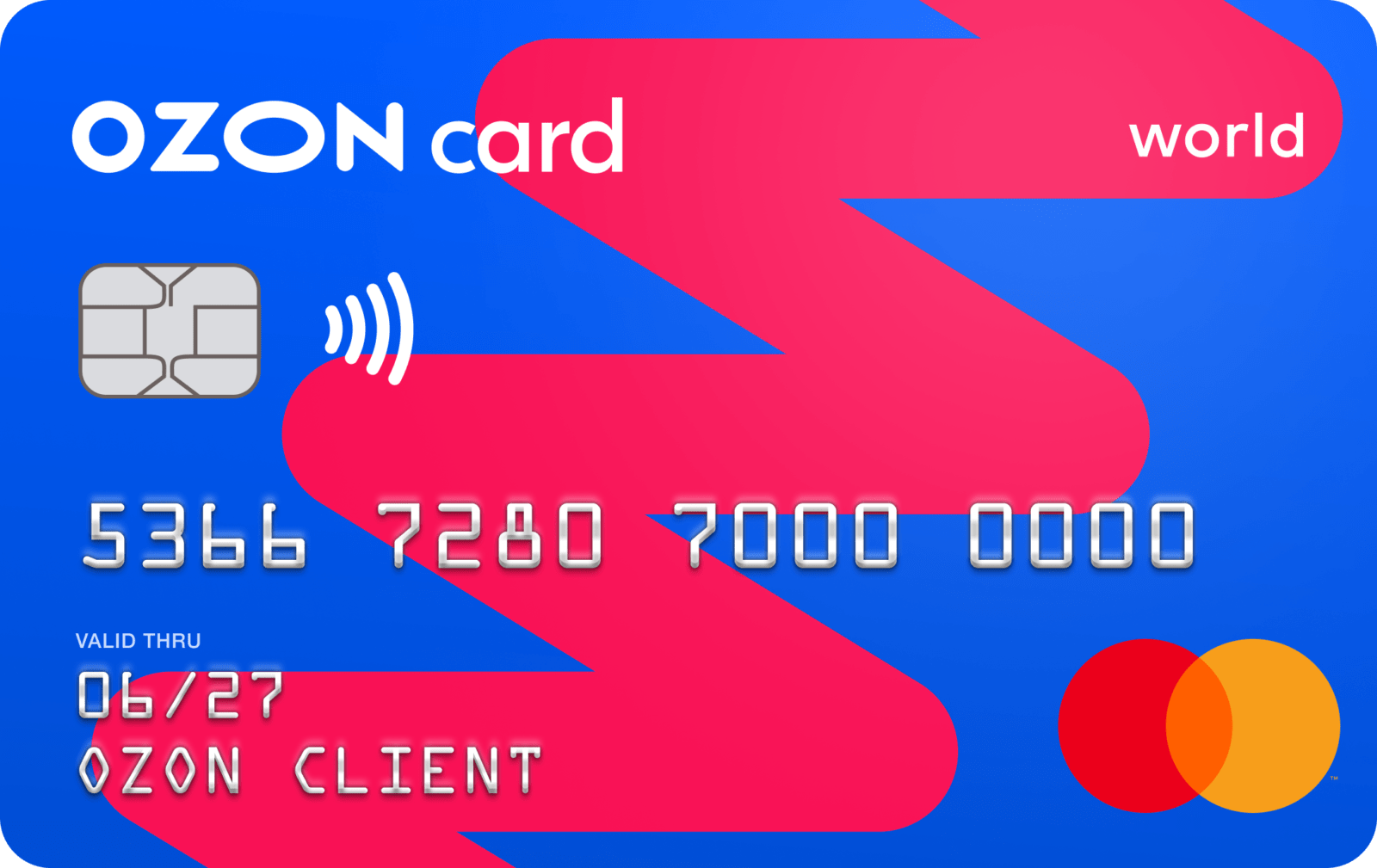
The Ozon Card is a financial product of the Ozon marketplace. With it, you can pay for purchases on the platform and get product discounts of up to 30%. Customers will receive up to 10% for paying with this card in other stores. There is no monthly maintenance fee.
The Ozon Card can be used not only to pay for purchases on the marketplace. You can pay with the virtual card outside the platform, and the plastic card can be used for payments in any offline stores.
How to get an Ozon Card
You can open a card using phone numbers from Russia, Kazakhstan, and Belarus. To pay for purchases outside the Ozon platform after opening the card, you need to issue a virtual and plastic card.
To get a card, follow these instructions:
- log in to your personal account;
- in the "Finance" section, select "Get a Card";
- create and enter a code word (must be in Russian) and do not share it with anyone;
- select "Get a card";
- enter the code from the SMS message;
- create and enter a four-digit password to log into the Ozon Card (it is not recommended to use simple combinations like 0000, 1111, your birth year, or similar).
After completing these steps, an Anonymous account will be opened, which is sufficient to pay for purchases on Ozon after topping it up.
Please note that a customer can get one virtual and one plastic card.
Virtual card
Before getting an Ozon virtual card, you need to open an account following the instructions above. Next, to get a virtual card, you need to:
- log in to the mobile app or the Ozon website;
- in the "Finance" section, select "Ozon Card";
- go to "My Finances" and select "Ruble Account";
- click "+" under the balance;
- select the option "Get card for free".
After that, you can upgrade your account for free. To do this, you need to fill out an application form and submit it.
Plastic card
You can only issue a plastic card after getting a virtual one. To do this, you need to perform the following actions:
- log in to the website or the marketplace app;
- in the "Finance" section, select "Ozon Card";
- on the banner featuring the plastic card, click the "Order card" option;
- click "Order" below the card description.
The card will be delivered along with your next order. You can receive it at pickup points, via courier delivery, or at a parcel locker. No passport is required to receive the order. The plastic card will be in the same packaging as the product, and its presence should be checked upon receipt. If the box with the plastic card is missing or turns out to be empty, you must contact Ozon support.
To use the card as a payment method, it must be activated. Activation is carried out as follows:
- log in to the Ozon website or mobile app;
- in the "Finance" section, select "Ozon Card";
- after that, a banner with the text "You have received an Ozon Card" should appear, select the "Activate" option;
- enter the card number and CVV code in the window that appears;
- click "Activate";
- then enter a PIN code for the card and confirm it.
The PIN code and the personal account password perform different functions. The card PIN code is used for payment, while the password is used to access your personal account.
If an incorrect PIN code is used three times in a row, the payment method will be blocked and the transaction will fail. To unblock the card and resume payment capabilities, you need to change the PIN code in your personal account on the Ozon website or in the app. To do this, you need to perform the following actions:
- log in;
- in the "My Finances" block, select "Ozon Card";
- expand the list and select the Mir payment system card;
- go to "Card Settings";
- select the "Change PIN code" item;
- confirm the transaction.
After changing the PIN code, card transactions will become possible again.
We will find offers tailored to your situation
Leave your phone number, and we will show you options with a high approval probability and current terms.
- Verified offers
- No calls from managers
- Results delivered through your preferred channel
Maintenance fees
The cost of card maintenance and service provision is indicated in the table.
| Service | Cost |
| Card opening | 0 RUB |
| Card maintenance | 0 RUB |
| Push notifications and SMS alerts | 59 RUB/month |
Please note that when you first enable notifications, a trial period starts. Notifications and SMS messages will be free for 14 days, after which a fee of 59 RUB per month will be charged.
Limits
Limits determine the amount that a client can store on the card, spend, or transfer to other bank accounts and other cards.
Please note that only Russian citizens can increase their limits.
Anonymous account
An anonymous account is an unpersonalized account that can only be used to pay for goods and services on the marketplace. It is available to all users after card registration.
Features for users with an anonymous account:
- you can store up to 15,000 RUB on it;
- you can spend no more than 15,000 RUB at a time;
- monthly expenses must not exceed 40,000 RUB.
Only holders of a Basic or Extended account can transfer money from an Ozon Card. This restriction is in accordance with the requirements of Russian legislation.
Only the owner can top up an anonymous account, so it is important that the phone number linked to the bank cards matches the phone number linked to the Ozon Bank personal account.
Basic account
After filling out the questionnaire, the client will have access to a Basic account, which provides other features:
- you can store up to 60,000 RUB in the account;
- withdraw cash – no more than 5,000 RUB per day and no more than 40,000 RUB per month;
- spend up to 60,000 RUB at a time;
- spend or transfer to other accounts and cards – up to 200,000 RUB.
Transfers to other banks are available by phone number or upon request in the app.
Expanded Account
You can lift restrictions and increase limits to an Expanded Account via your mobile operator or by uploading a photo of your passport. Upgrading the card tier via a mobile operator is available to Beeline, MegaFon, and MTS customers. The SIM card must be registered in the name of the Ozon Card holder.
An Expanded Account allows you to:
- store up to 600,000 RUB;
- withdraw up to 100,000 RUB in cash per day, but no more than 200,000 RUB per month;
- spend 600,000 RUB at a time, with an unlimited total amount per day or month;
- transfer up to 200,000 RUB via the Faster Payments System;
- transfer money to other banks by phone number – up to 600,000 RUB per transaction, with no amount limits per day or month.
How to increase the limit
All Russian citizens can increase their limit to the Basic tier. To do this, you will need to provide your passport details and INN. Follow these steps:
- log in to the app;
- in the "Finance" section, go to "Ozon Card";
- in the "My Finances" section, select "Limits";
- click on the "Increase Limits" option;
- fill out the application form, entering your full name, passport series and number, and INN;
- submit the application form;
- in the pop-up window, enter the code from the received SMS message.
After that, the application will be submitted for verification. If the identification procedure is not completed instantly, the client will receive a message about the limit increase. In certain cases, verification may take up to 24 hours.
Russian citizens aged 18 and older can increase their limit to an Expanded Account. This can be done in several ways:
- via a mobile operator;
- using a passport photo.
To increase the limit via your mobile operator, you need to perform the following actions:
- log in to the app;
- in the "Finance" section, select Ozon Card;
- next to the "Finance" block, select "Limits";
- in the "Expanded Account" block, select "Increase limits for free";
- enter your date of birth;
- click continue and wait for an SMS confirmation from your mobile operator;
- after that, the application form will open; you need to check the accuracy of the data and click the "All correct" button;
- then you need to enter the code again and submit the application for verification.
To increase the limit using a passport photo, you must:
- log in to the Ozon app;
- in the finance block, select Ozon Card;
- next to the "Finance" block, select "Limits", go to "Expanded Account", and select the "Increase limits for free" option;
- select the "Take photo" feature (please note that the document photo must be clear and without glare);
- after uploading the passport photo, you need to take a selfie holding the open passport page;
- after uploading the photos, you should enter your registration address and click "Save";
- review the data and confirm that it is correct by clicking the "All correct" button;
- the application will be submitted for verification.
The client will be notified additionally about the completion of the verification and the account statuses.
Loyalty program
Cashback crediting terms:
- credited once a month in rubles for purchases made outside of Ozon;
- the crediting date is individual and displayed in the "Bonuses" section;
- base cashback is 1%, and up to 10% for three favorite categories;
- cashback is canceled upon returns and canceled purchases;
- the amount is rounded down to the nearest ruble.
A maximum of 1,500 RUB in cashback will be credited per month for purchases in favorite categories, and no more than 3,000 RUB in total. If the accumulated amount exceeds the limit, the remainder burns out and does not roll over to the next month.
When paying for purchases with an Ozon Card, you can get up to a 30% discount on items with green price tags.
How to top up an Ozon Card
You can use cards issued by Russian banks to top up.
Via the Fast Payment System (FPS)
When transferring via the Fast Payment System, funds arrive on the card instantly. To top up an Anonymous account via the FPS, the phone number registered with Ozon Bank must match the phone number at the bank from which the transfer is made.
To top up an Ozon Card from your bank card, you need to follow these steps:
- Select the "Payments" menu item in your bank's app.
- Click on the FPS logo button.
- Enter the phone number and click "Continue".
- Select Ozon Bank (Ecom Bank) as the recipient bank.
- Specify the amount and proceed with the transfer.
Please note that the FPS transfer function must be enabled.
From another bank's card
You can top up the card as follows:
- log in to the Ozon app or website;
- go to the "Finance" section and click the "Top up" button;
- select the "From another bank's card" option;
- select the amount and card;
- enter your Ozon card details;
- check that the details are entered correctly;
- enter the confirmation code from the SMS.
Ozon does not charge a fee for card top-ups, but the bank from which the transfer is made may charge one. To save money on transfers up to 100,000 RUB per month, you should use the FPS.
Cash via ATM
You can use an ATM to top up your Ozon Card. No fee is charged when using VTB ATMs.
Transfers and withdrawing money from an Ozon Card
The function of transferring and withdrawing money from an Ozon card is available only to holders of Basic and Advanced accounts. You can use the following methods for this:
- Transfer via FPS. In the "Finance" section of the Ozon app, select the "Payments" menu item. Next, enter the recipient's phone number and select the bank. Then make sure the entered information is correct and confirm the transfer.
- Via your bank's app. On the "Transfers" tab of your app, select the "Top up" and "From my account" sections. Next, select OZON (Ecom Bank), specify the amount, and confirm the request. A push notification will appear in the Ozon app allowing you to confirm the transfer.
- Cash withdrawal at an ATM. You can use VTB ATMs to withdraw money without a fee.
If the ATM does not return the card during withdrawal, it must be blocked. Then contact Ozon support to check the possibility of reissuing the payment instrument.
How to close card services
You can terminate card service if there are no active orders paid for with this payment instrument. If there is money on the card, you need to transfer it to an account in another bank using the FPS, spend it on purchases, or leave it in favor of the bank. To terminate card service, simply write in the support chat.
What is the difference between Ozon Card and Ozon Card (old version)
Ozon Card is a bank card issued in partnership withRNKO "Payment Center". Starting July 11, 2022, the name Ozon Card was changed to o.mycard. Issuance of this product for new clients has been discontinued, but existing cardholders can still use it. However, its functionality and features will be limited. You can pay for purchases on and outside the marketplace, but cashback and bonuses will not be credited.
Starting October 3, 2022, topping up the Ozon Card is no longer possible. Users can spend the funds remaining on the account or transfer them to a current Ozon Card.
Pros and cons of the Ozon Card
The main advantages of the Ozon Card include:
- good discounts help you save significantly when shopping on the marketplace;
- 10% cashback on 3 product categories, 1% discount on other purchases;
- Mir payment system support, the card can be used for payments in any stores;
- stylish design.
Despite the significant advantages, users also note some disadvantages. These include:
- rather confusing card system, the client cannot get just a plastic card, they must also have a virtual one;
- with Anonymous status, money cannot be withdrawn from the account;
- the card is unpersonalized;
- cashback is rounded down;
- maximum cashback amount is 3000 points per month;
- you cannot transfer money to another person by card number, you must use the Faster Payments System (FPS) for the transfer.
The Ozon Card is a convenient payment tool that allows you to get cashback when paying for purchases on the marketplace and beyond. To expand its features, you need to go through the identification procedure, but it will not cause any difficulties even for an inexperienced user.

0% for 10 years
From 0 %
Limit - up to 500000 RUB
Период - 0 дней
Withdrawal with 0% fee up to RUB 0
Up to 0 %
Тип кешбэка - Рубли
Кешбэк - Нет
Withdrawal without fee up to 100,000 RUB
Up to 0 %
Тип кешбэка - Рубли
Кешбэк - 10%
Other posts