 Bank Zenit
 Renaissance Bank
 LOCO-Bank
 T-Bank
 Bank Sinara
 Credit Europe Bank


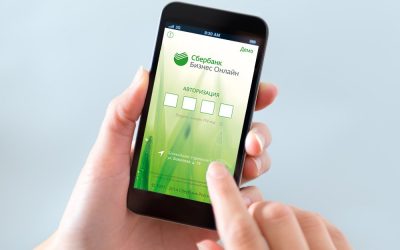



How to add a card to Sberbank Online

How to register for SberBank Online?
Only existing Sberbank clients — holders of debit and/or credit cards — can register with the service for the first time. You can add your first card to online banking in two ways: through the bank’s web version and through the mobile app. Let’s look at each in more detail.
Through the web version of the site
You can add your first card to Sberbank Online as follows:
- Go to the service’s official website at the link: https://online.sberbank.ru/.
- Click the "Register" button.
- Enter the card number. You can find it on the front of the card.
- Enter the client code from the SMS.
- Enter the login and password to sign in to the site.
Please note that you can only register in the system if your card is connected to mobile banking. If not, you first need to activate the service via an ATM or with the help of a Sberbank employee.
Through the mobile app
Registration through the mobile app works in almost the same way:
- First, you need to install the app on your device.
- On the login page, you need to tap “Log in by card number”.
- Next, enter the bank card number.
- Then enter the client code from the SMS.
- Finally, you will need to create a five-digit security code.
All subsequent new cards will be added to the system automatically — based on your personal data.
How to remove a card from SberBank Online?
In fact, you cannot delete a card from Sberbank Online. You have two options: block the banking product or hide it in your privacy settings. Let’s look at both methods.
Blocking the card
You can fully terminate servicing of your bank card as follows:
- Log in to Sberbank Online or the mobile app.
- Select the card you want.
- Click the “Block” button.
- Select the reason for blocking.
This way you can stop servicing only a debit card. A credit card can only be closed at a Sberbank branch.
Changing privacy settings
To simply hide the card in Sberbank Online or at ATMs, you need to:
- Log in to online banking or the mobile app.
- Select the card you want.
- Go to the “Settings” section.
- Click “Hide card”.
- Change the card display settings.
We will find offers tailored to your situation
Leave your phone number, and we will show you options with a high approval probability and current terms.
- Verified offers
- No calls from managers
- Results delivered through your preferred channel
Why is my card not showing up in SberBank Online?
It’s also possible that the card simply stopped displaying in Sberbank Online. This can happen for several reasons, which we’ll discuss in more detail below.
Main reasons a card is missing from Sberbank Online
A card may disappear from Sberbank Online for several reasons:
- due to changes in privacy settings;
- due to a change in personal data;
- due to legal restrictions;
- due to termination of the service agreement;
- due to a change in client status;
- due to a simple technical glitch.
What should I do if the card does not appear in the service?
Most often, the reason lies in changed privacy settings. Therefore, you can restore the card to the main screen of your internet bank using the method described above. In all other cases, you will need to contact Sberbank technical support.
How to add a second card to SberBank Online?
As a Sberbank client, you may have several bank cards. Data for each of them will be stored in your personal account. While you had to register in the system yourself the first time, every subsequent product will be added automatically.
An exception is issuing a card with new passport details (for example, after a name change). In this case, the system will not be able to add the product to your existing personal account — you will need to register again.
Can I add someone else's bank card to SberBank Online?
In fact, you can register in a personal account using someone else's bank card details. To do this, you will need the card number and the authorization code. You will also need access to the cardholder's phone, as client codes will be sent there.
However, you will not be able to add someone else's card to an existing personal account, as the system automatically registers products issued to your passport details in Sberbank Online.
0% for 10 years
From 0 %
Limit - up to 500000 RUB
Период - 0 дней

Withdrawal with 0% fee up to RUB 0
Up to 0 %
Тип кешбэка - Рубли
Кешбэк - Нет
Withdrawal without fee up to 100,000 RUB
Up to 0 %
Тип кешбэка - Рубли
Кешбэк - 10%
Other posts